Getting Started
This page walks you through TextGraph's core features using a cloud architecture example that builds from two nodes to a multi-tier platform. Each section introduces one concept, with the source beside its rendered result.
Your First Diagram
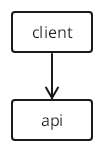
Two nodes, one arrow — TextGraph does the rest.
TextGraph source
client -> apiRendered diagram
Preview unavailable in the current renderer. The source remains available to copy.
Each word becomes a node labeled with its own name. The -> operator draws a directed edge between them. No diagram-type declaration is needed.
Adding Nodes
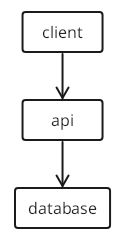
Chain nodes to extend the diagram. Each -> adds one edge.
TextGraph source
client -> api -> databaseRendered diagram
Preview unavailable in the current renderer. The source remains available to copy.
Three identifiers, two arrows, one complete request flow. Chains can be as long as you need.
Node Labels
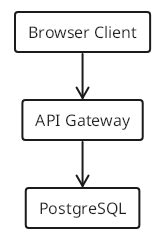
By default, a node displays its identifier as its label. To assign a human-readable name, declare it on a separate line with id: Label.
TextGraph source
client -> api -> db

client: Browser Client
api: API Gateway
db: PostgreSQL
Rendered diagram
Preview unavailable in the current renderer. The source remains available to copy.
Labels can appear before or after the connections — the renderer collects all declarations before layout. Write connections first to focus on relationships, then name the nodes.
Labels cannot appear inline on a connection line. This is invalid:
<!-- invalid -->
client: Browser Client -> api: API Gateway
See Flowcharts — Node Labels for more detail.
Edge Labels
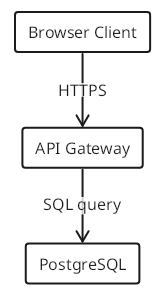
Append : label after a connection to annotate the edge.
TextGraph source
client -> api : HTTPS
api -> db : SQL query

client: Browser Client
api: API Gateway
db: PostgreSQL
Rendered diagram
Preview unavailable in the current renderer. The source remains available to copy.
Edge labels describe protocols, data formats, or outcomes. The label text is trimmed of surrounding whitespace.
Styling Nodes
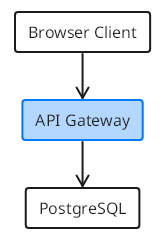
Place style classes in parentheses after the node identifier. Classes compose — list as many as you need, separated by spaces.
TextGraph source
client -> api -> db

client: Browser Client
api(fill primary): API Gateway
db: PostgreSQL
Rendered diagram
Preview unavailable in the current renderer. The source remains available to copy.
fill primary fills the node with the primary brand color. Use circle, ellipse, or diamond to change a node’s shape.
See Style Classes for the full list of colors, shapes, borders, and weights.
Grouping
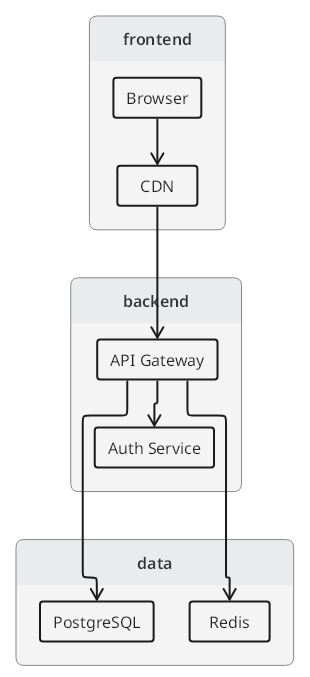
Curly braces group nodes and their connections. Connections inside a group create or reuse local node members directly. At the root, use a short name when it is unique in the diagram; add a group prefix only when names are duplicated. Keep separate node labels and styles at the root.
TextGraph source
frontend {
  browser -> cdn
}
backend {
  api -> auth
}
data {
  db
  cache
}

cdn -> api
api -> db
api -> cache

browser: Browser
cdn: CDN
api: API Gateway
auth: Auth Service
db: PostgreSQL
cache: Redis
Rendered diagram
Preview unavailable in the current renderer. The source remains available to copy.
Different groups can each contain a node named api; use frontend.api and backend.api to distinguish them from the root. Inside each group, api always means its local node. Root connections and decorations leave membership unchanged, even when they appear before the groups.
Groups map naturally to architectural tiers — frontend, backend, data — and keep the diagram organized as it grows.
See Flowcharts — Groups for named, nested, and anonymous groups.
Layout
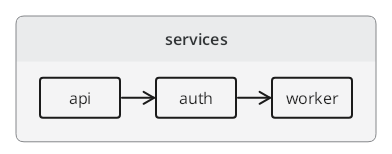
Apply the horizontal class to a group to arrange its children left to right instead of the default top to bottom.
TextGraph source
services(horizontal) {
  api -> auth -> worker
}
Rendered diagram
Preview unavailable in the current renderer. The source remains available to copy.
Put the direction class on the group header. For the whole diagram, place (horizontal) at the start of the source.
See Flowcharts — Layout for layout directions and column grids.
Start Using TextGraph
Playground
The fastest way to try TextGraph — no install required.
Copy the source from any example on this page into the Playground. Edit the text to update the image, then download a PNG or share a link.
Markdown
Put diagram source inside a fenced block with the language textgraph:
```textgraph
client -> api -> database
```
Use the Markdown & VitePress plugin to render these blocks in documentation.
VS Code Extension
Search for TextGraph in the VS Code extension marketplace, or see the VS Code Extension guide.
Next Steps
Continue with Flowcharts to learn the language in depth, then choose your workflow: write in the Playground, publish in Markdown, or build an application with the renderer or visual editor.
| Topic | What you'll learn |
|---|---|
| Flowcharts | Connection types, shapes, edge styles, groups, layout control |
| Style Classes | Colors, shapes, line styles, and weights |
| Language Specification | Full grammar and rendering rules |